Online booking sounds like a big project: a website, developers, integrations. In reality, a salon, studio or independent professional can set it up in one day - without a website and without installing any software. Here's the plan, step by step.
Why switch to online booking
- Clients book when it suits them. Many want to book in the evening or at weekends - exactly when nobody answers the phone.
- Less routine. No more back-and-forth messages to agree on a time: clients see only free slots.
- Fewer mistakes. The system knows service durations and working hours, so there are no double bookings.
- Fewer no-shows. Reminders go out automatically.
Step 1. Prepare your service list (30 minutes)
Write down all your services with price and duration. Duration matters most: it determines which times clients see. Add a few minutes for preparation or cleaning if needed.
Tip: don't split the list into dozens of variants. It's easier to choose from 10-15 clear services than from 60 similar ones.
Step 2. Sign up and go through the setup wizard (20 minutes)
After you sign up for SmartBook, a wizard asks for your services, staff, working hours and prices. You can add your logo and description right away or later - everything can be changed at any time.
Step 3. Set up your team's working hours (20 minutes)
For each person, set working days and hours, breaks and days off. For unusual patterns - shifts, rotating rotas, evenings only - use individual working hours. It's best to enter holidays and sick leave in advance in time-off planning.
Also decide how far ahead clients can book and how long before an appointment booking closes. You'll find this under flexible booking windows.
Step 4. Turn on reminders (10 minutes)
Choose channels for confirmations and reminders: email, WhatsApp or SMS. Ideally one reminder the day before and one a few hours before, with a link to reschedule.
Step 5. Design your booking page (20 minutes)
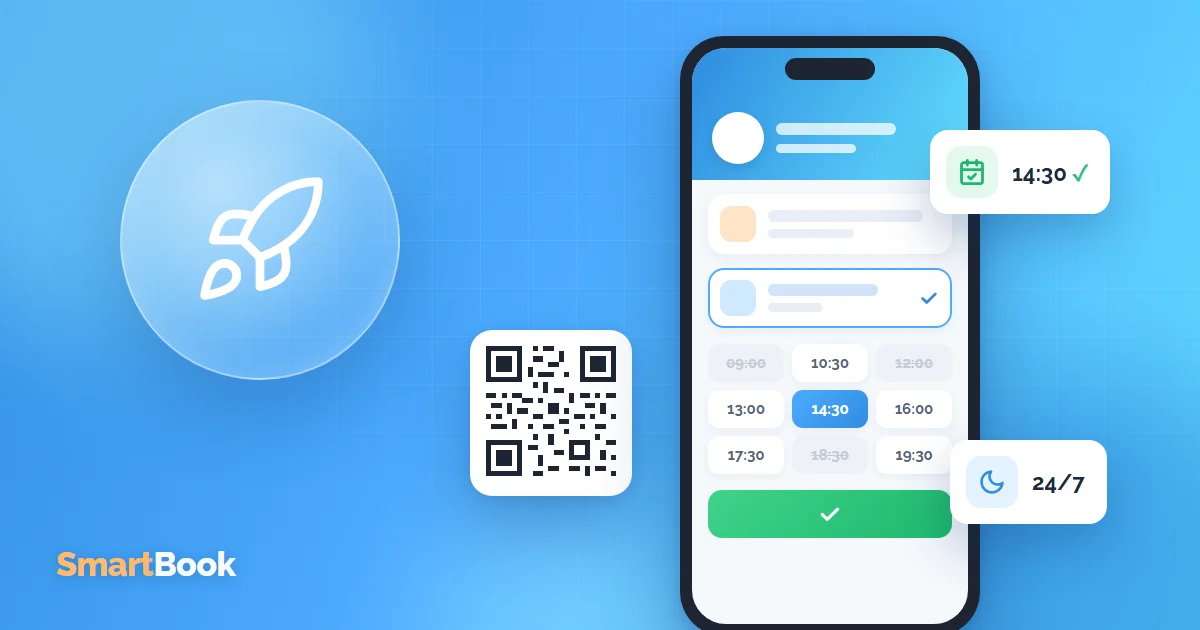
In SmartBook every business gets its own online booking page. Add your logo, photos, address and a short description. Clients open the link, choose a service, a staff member and a time, and receive a confirmation.
If you want to avoid no-shows for expensive services, turn on online booking deposits.
Step 6. Put the link everywhere people look for you (30 minutes)
- Instagram - link in your profile and a link sticker in Stories.
- Google Business Profile - booking link in your listing.
- Messengers - a pinned message and an auto-reply with the link.
- Website, if you have one - a "Book now" button.
- In the salon - a QR code at the front desk and on business cards.
Step 7. Make a test booking (10 minutes)
Book an appointment yourself on your phone, just like a client would. Check that prices and free times are correct, that the confirmation arrives and that the appointment appears in the calendar. Then cancel the test booking.
The first few weeks
- Ask your regulars to book via the link - they'll get used to it faster.
- Keep an eye on no-shows and which times get booked most.
- Turn on review requests after the visit so reviews start appearing on your booking page.
All in all, about two and a half hours, and online booking is live. Try SmartBook for free: full access during the trial, no credit card needed.
FAQ
Do I need my own website?
No. The booking page is included in SmartBook - you just share the link.
Can I still add appointments manually?
Yes. The front desk or staff add appointments manually, clients book online - everything ends up in the same calendar.
Does it work on a smartphone?
Yes, both the booking page and the staff account work in the browser on phones and computers.